CONTENT APPS & LIVE FEEDS
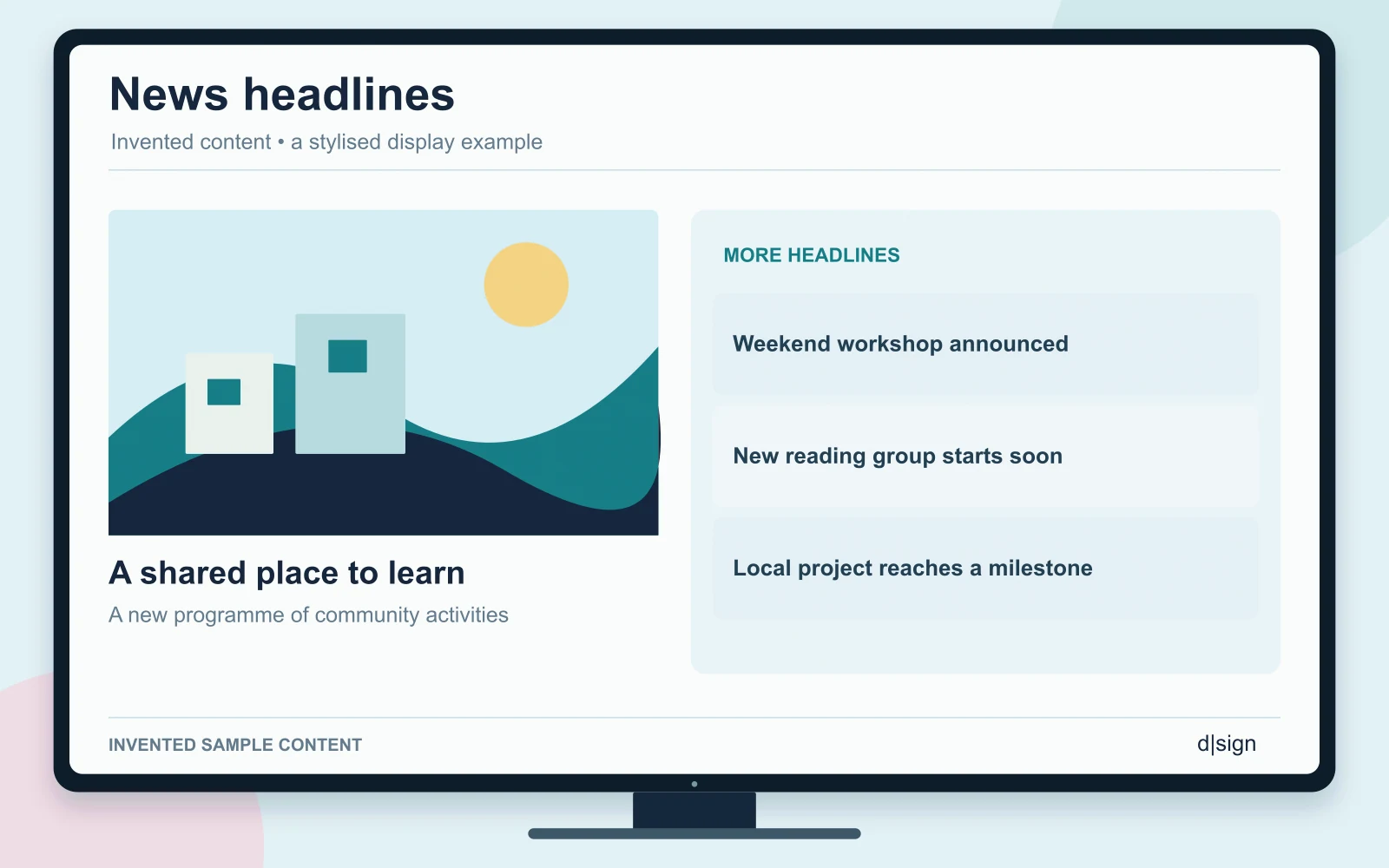
News headlines.
Add a changing layer of useful information to your own messages. Display headlines and summaries from available news sources, with a category and presentation suited to your audience.
WHY IT IS USEFUL
Give people another reason to look at the screen while keeping your own communication part of the same view.
Use this capability as part of a display that has a clear job: inform a visitor, keep a team connected or make useful information easier to find. The right configuration depends on the audience and the information you maintain.
What you can do
- Choose available sources and categories relevant to the setting.
- Control the number of recent stories shown.
- Present headlines and summaries in a suitable zone or dedicated view.
- Combine automatically refreshed news with your own notices, media and messages.
EXAMPLE USES
A few useful ways to put it to work.
These are example configurations, ready to adapt to your own setting.
Make the information visible
Mix topical headlines with workplace updates in a staff room.
Keep it relevant to the place
Include relevant news in a reception or waiting area.
Combine it with a wider view
Build an information screen around community notices and wider current affairs.
WORKS AS PART OF A CONNECTED APPROACH
Explore related capabilities.
Combine the tools that make sense for the communication you want to achieve.
Weather forecasts
Give people useful local context before they head outside. Choose a short weather summary or a longer outlook and decide which details deserve screen space.
Traffic incidents
Make relevant road disruption visible before people travel. Select a location and radius so the display can focus on incidents and planned works in the surrounding area.
Sensors
Bring readings from connected building and environmental systems onto your screens. Use supported sensor integrations to make measures such as occupancy or air quality visible in the places they matter.
SAME INFORMATION, DIFFERENT PRESENTATIONS
Choose how the information appears.
The examples below use invented information to show different ways this content can appear. Give it the whole screen, combine it with other information in a screen area, or use the alternative presentation shown. Available settings depend on the app and the chosen layout.
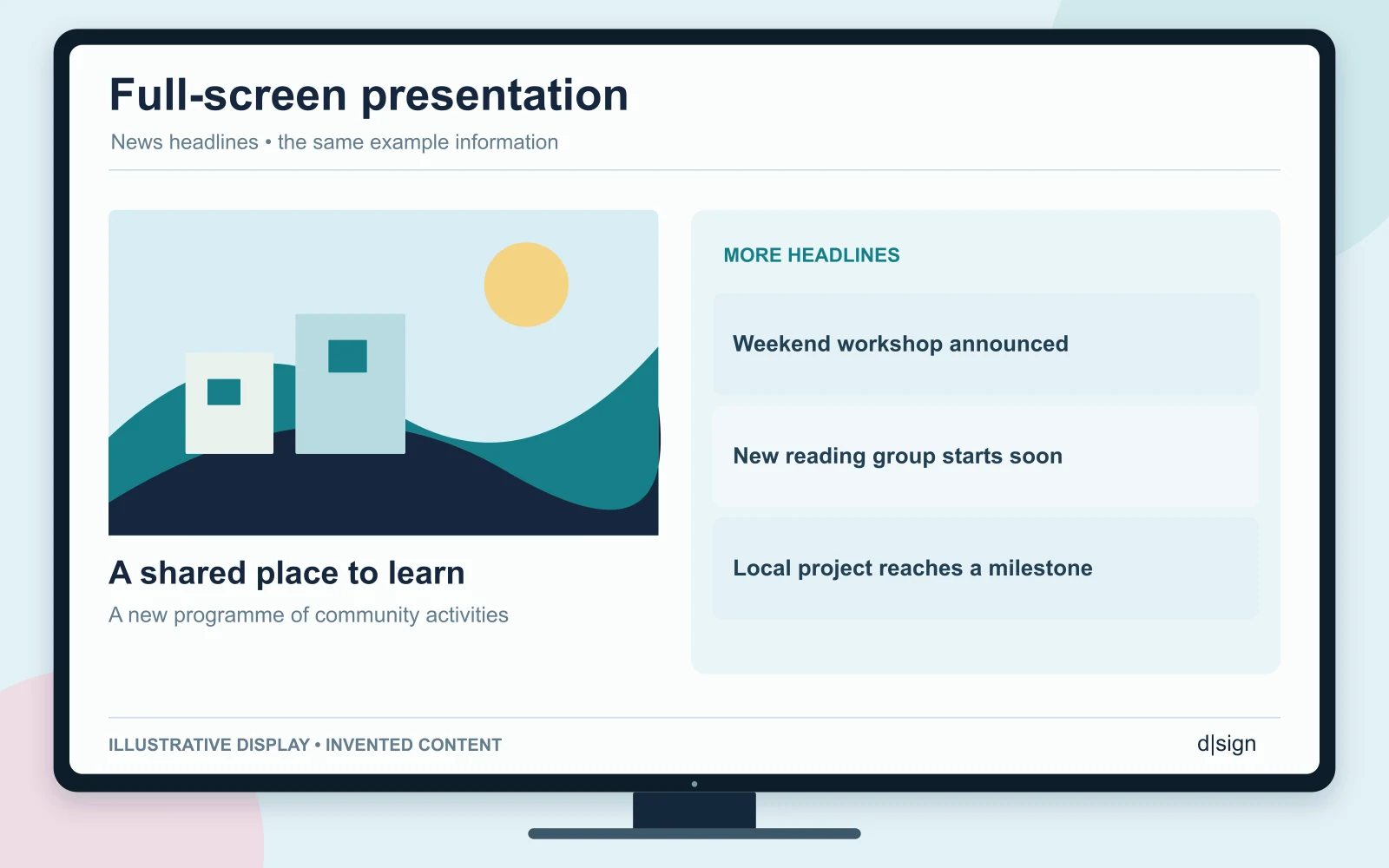
Full-screen presentation
Give this content the whole screen when it deserves the focus.
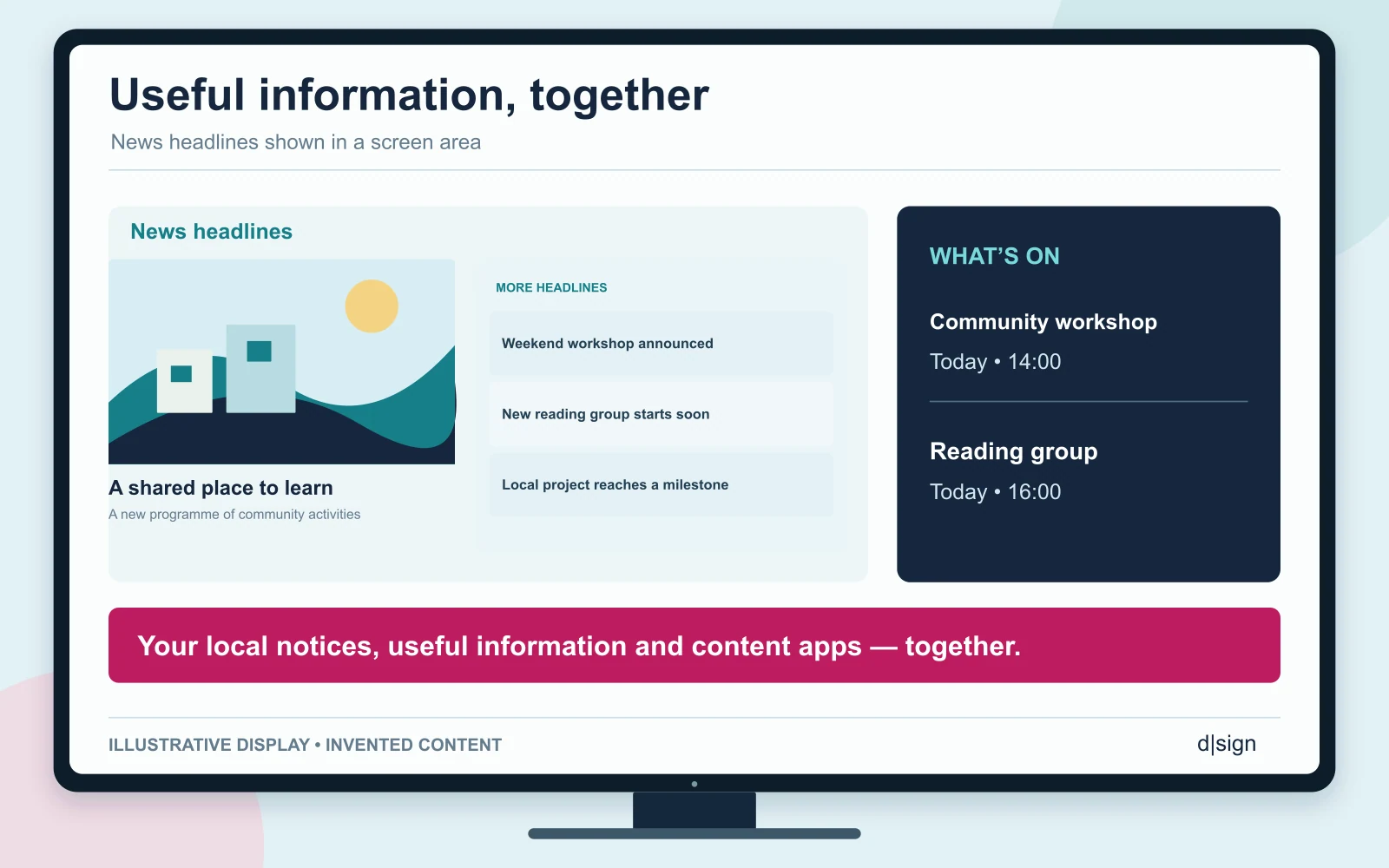
Part of a wider display
The same information occupies one area, alongside complementary content.
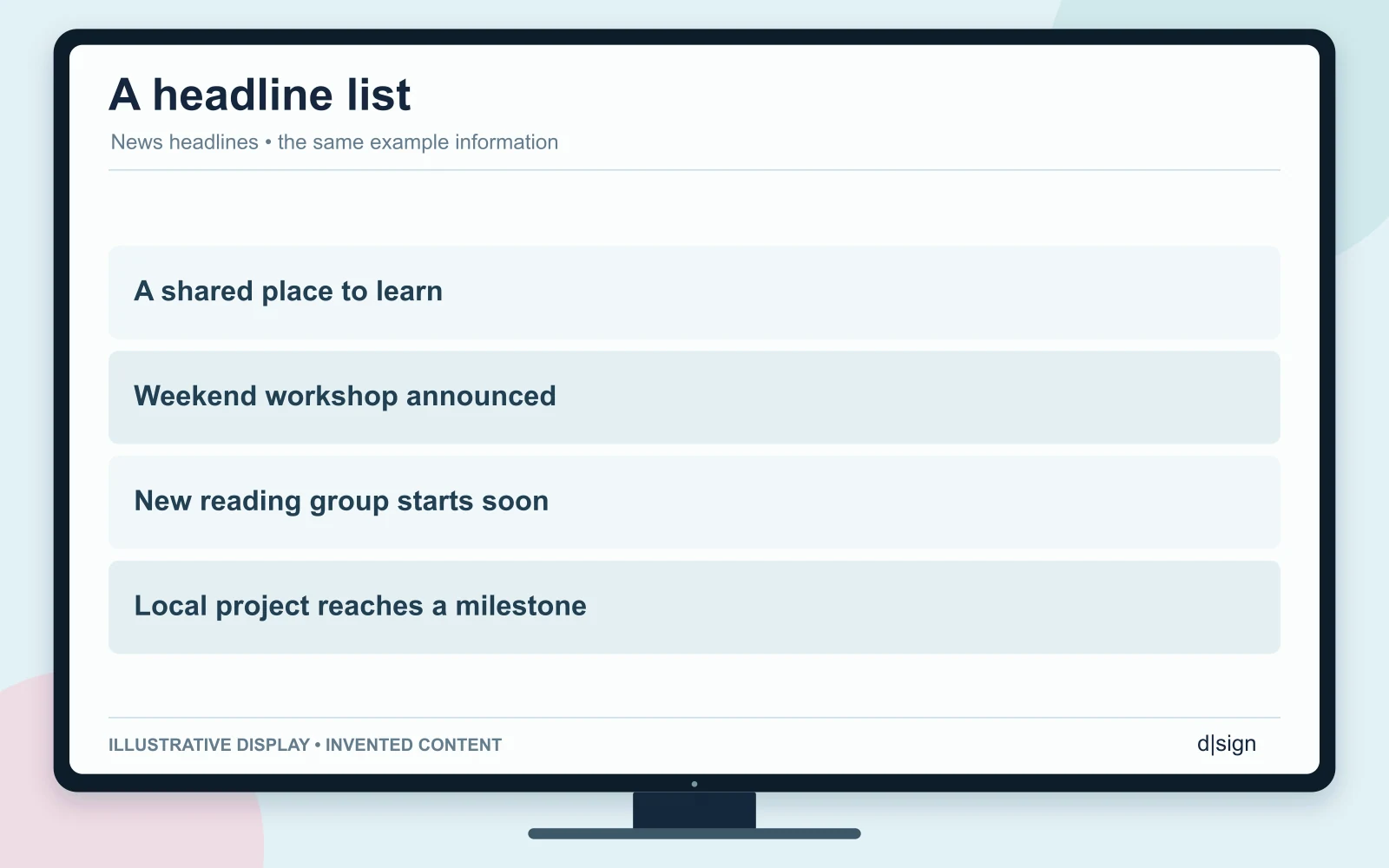
A headline list
Show the headlines together instead of leading with an image.
Let’s put news headlines to work.
Start with your audience, your spaces and the information you want people to see. We’ll help shape a practical d|sign setup around them.