CONTENT APPS & LIVE FEEDS
Traffic incidents.
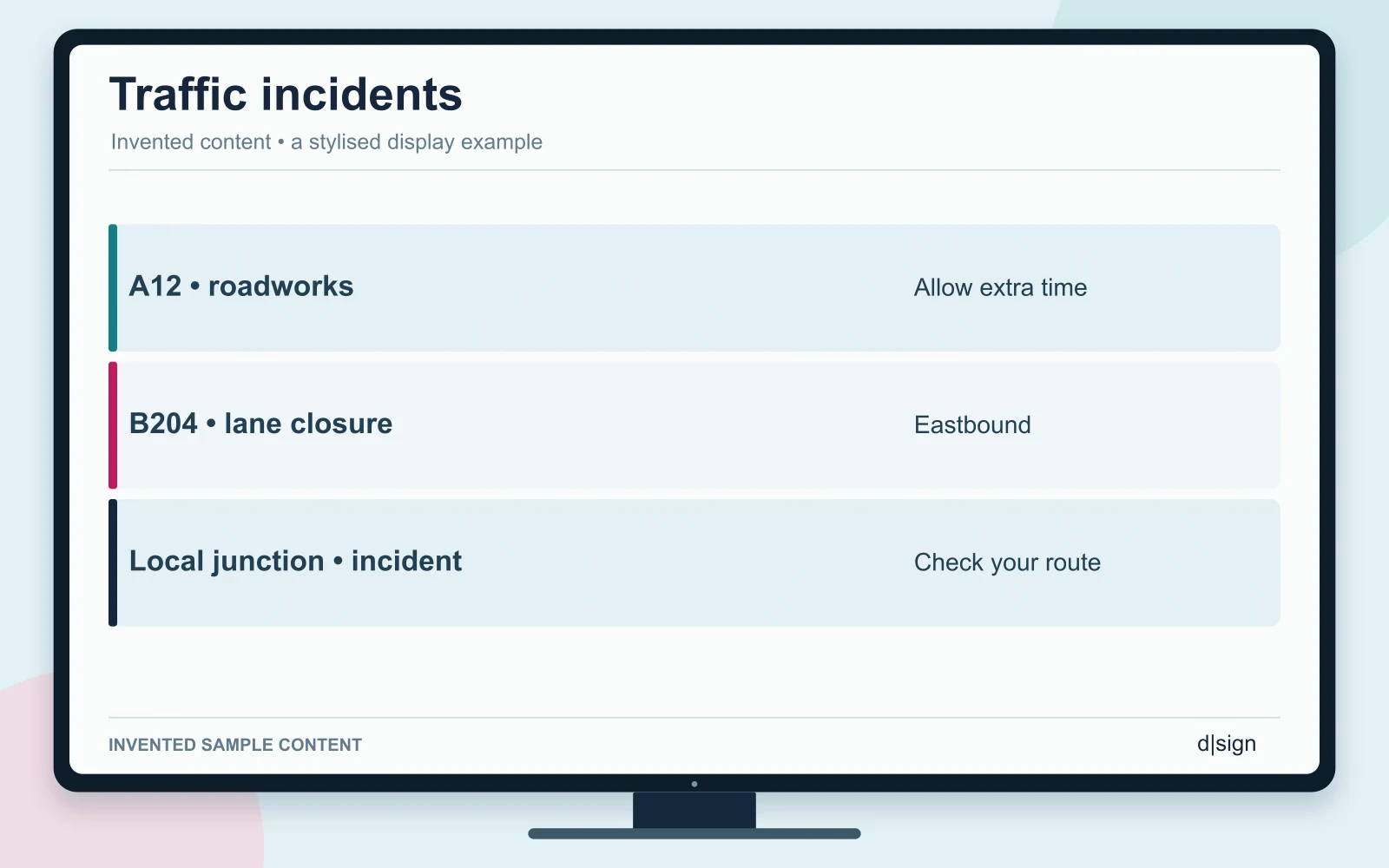
Make relevant road disruption visible before people travel. Select a location and radius so the display can focus on incidents and planned works in the surrounding area.
WHY IT IS USEFUL
Give staff, visitors and drivers a useful prompt to check their onward journey rather than discovering a disruption at the exit.
Use this capability as part of a display that has a clear job: inform a visitor, keep a team connected or make useful information easier to find. The right configuration depends on the audience and the information you maintain.
What you can do
- Select a central location and an area of interest.
- Display available incident information, including disruption and planned roadworks.
- Refresh the feed as the source information changes.
- Present traffic information on its own or alongside other travel and venue content.
EXAMPLE USES
A few useful ways to put it to work.
These are example configurations, ready to adapt to your own setting.
Make the information visible
Add a travel view near the exit of a workplace.
Keep it relevant to the place
Keep a visitor venue informed about nearby road disruption.
Combine it with a wider view
Combine road information with messages for a logistics or operations team.
WORKS AS PART OF A CONNECTED APPROACH
Explore related capabilities.
Combine the tools that make sense for the communication you want to achieve.
Sensors
Bring readings from connected building and environmental systems onto your screens. Use supported sensor integrations to make measures such as occupancy or air quality visible in the places they matter.
Live rail information
Help people plan their onward journey with rail information on the screens they already pass. Choose the relevant station and a display that makes the next services easy to scan.
London Tube status
Give London travellers a quick overview of Underground service conditions. Show recognisable line names and colours alongside the latest status information supplied by the feed.
SAME INFORMATION, DIFFERENT PRESENTATIONS
Choose how the information appears.
The examples below use invented information to show different ways this content can appear. Give it the whole screen, combine it with other information in a screen area, or use the alternative presentation shown. Available settings depend on the app and the chosen layout.
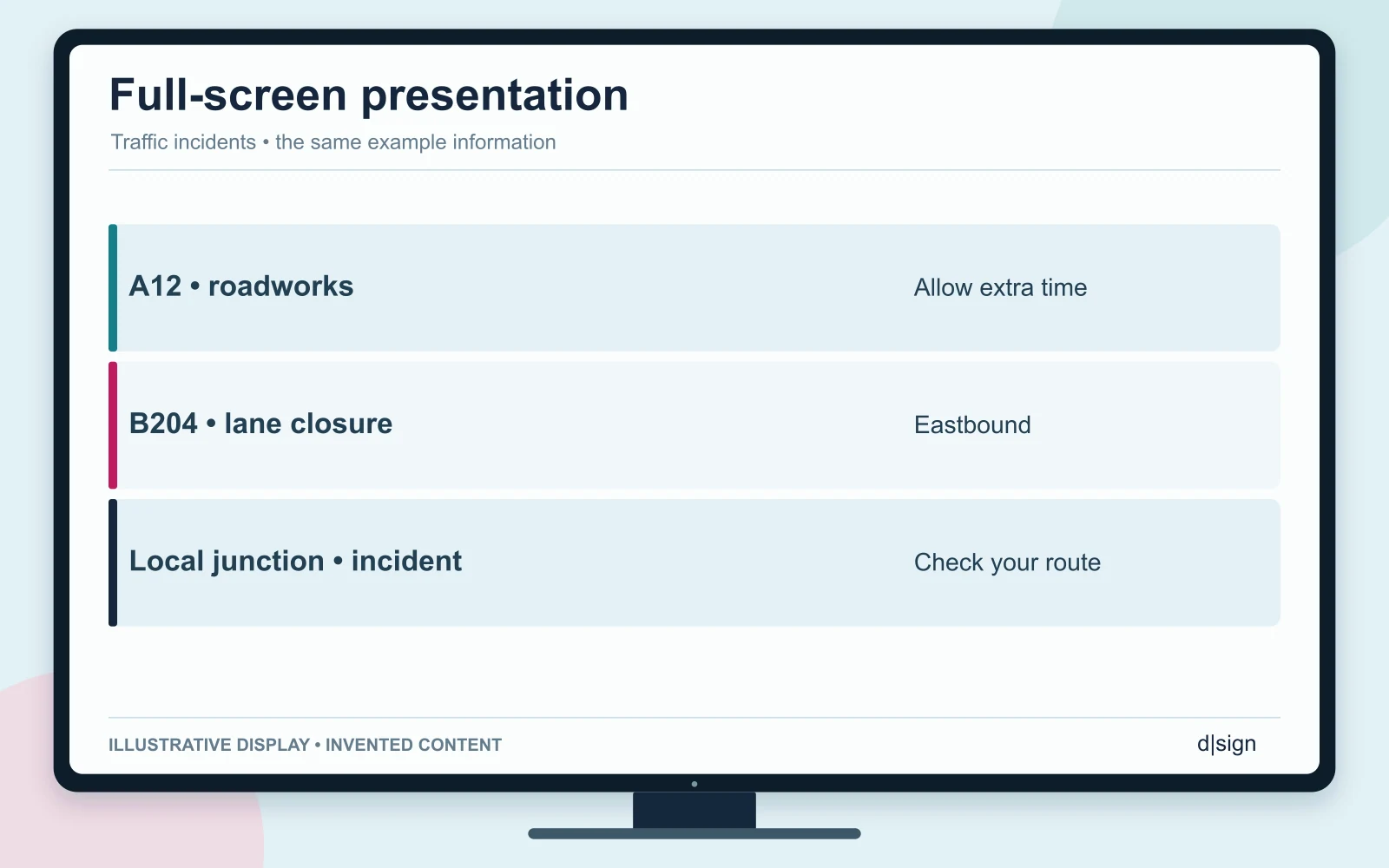
Full-screen presentation
Give this content the whole screen when it deserves the focus.
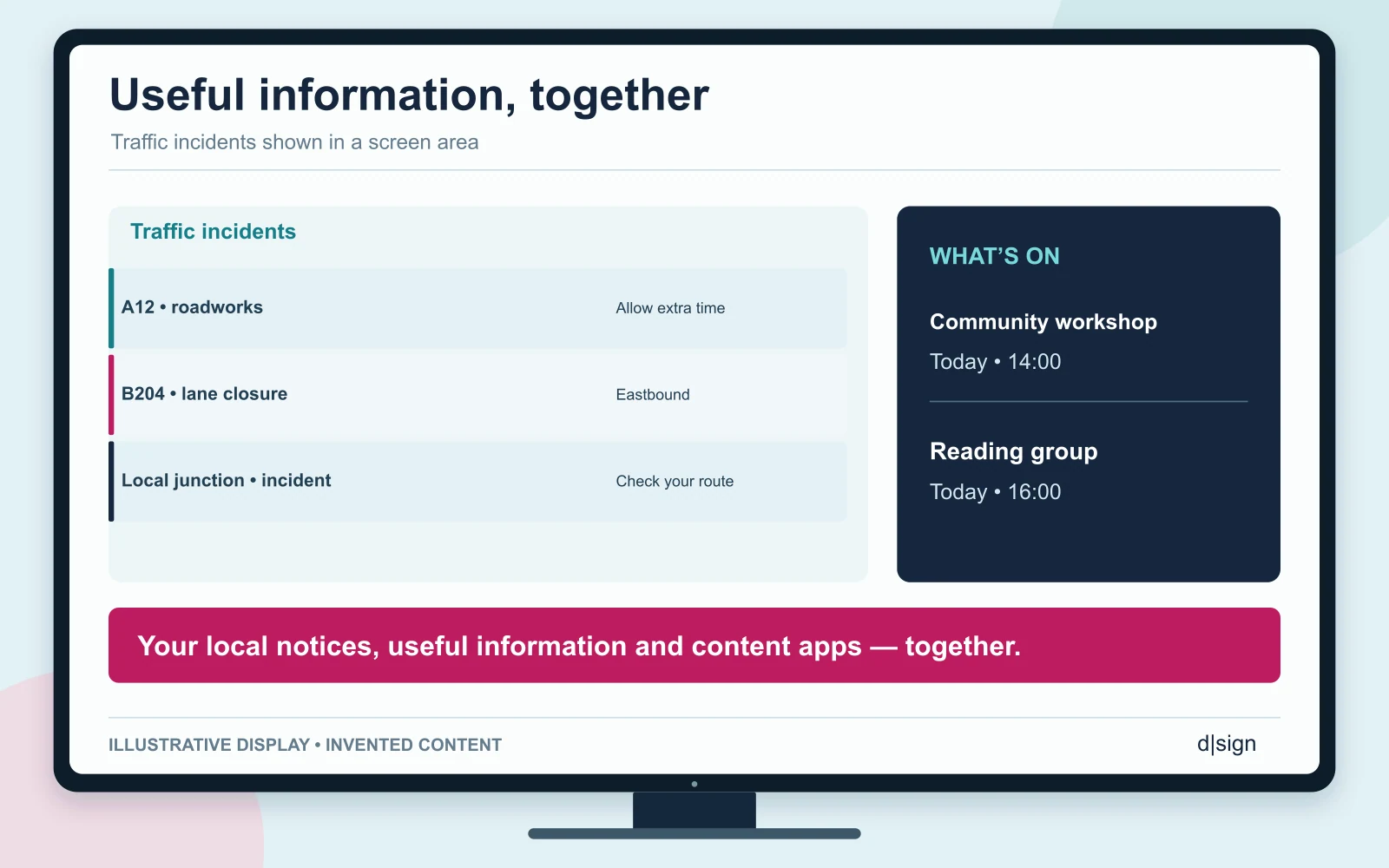
Part of a wider display
The same information occupies one area, alongside complementary content.
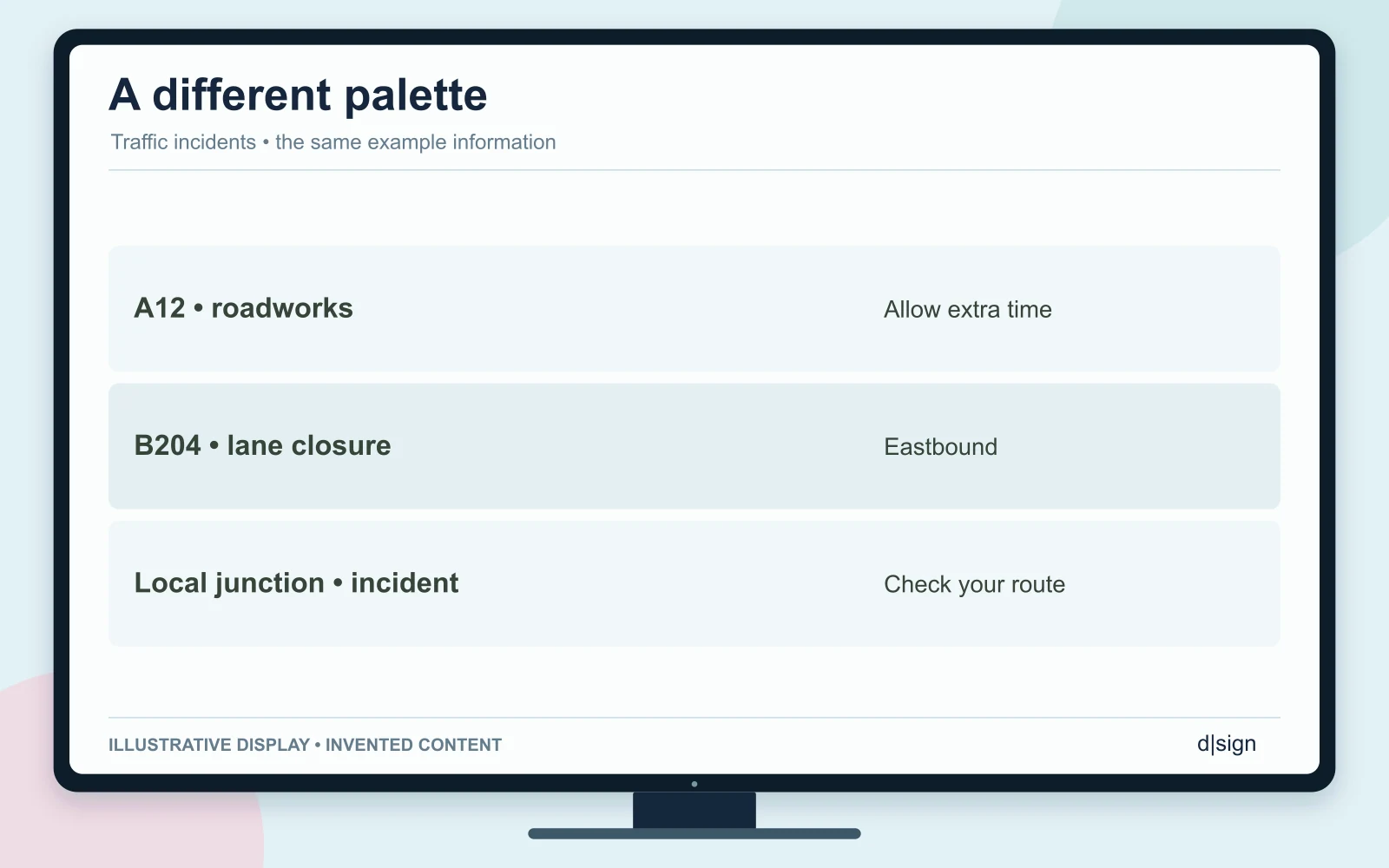
A different palette
Adapt the presentation while retaining the same incident information.
Let’s put traffic incidents to work.
Start with your audience, your spaces and the information you want people to see. We’ll help shape a practical d|sign setup around them.