CONTENT APPS & LIVE FEEDS
Live rail information.
Help people plan their onward journey with rail information on the screens they already pass. Choose the relevant station and a display that makes the next services easy to scan.
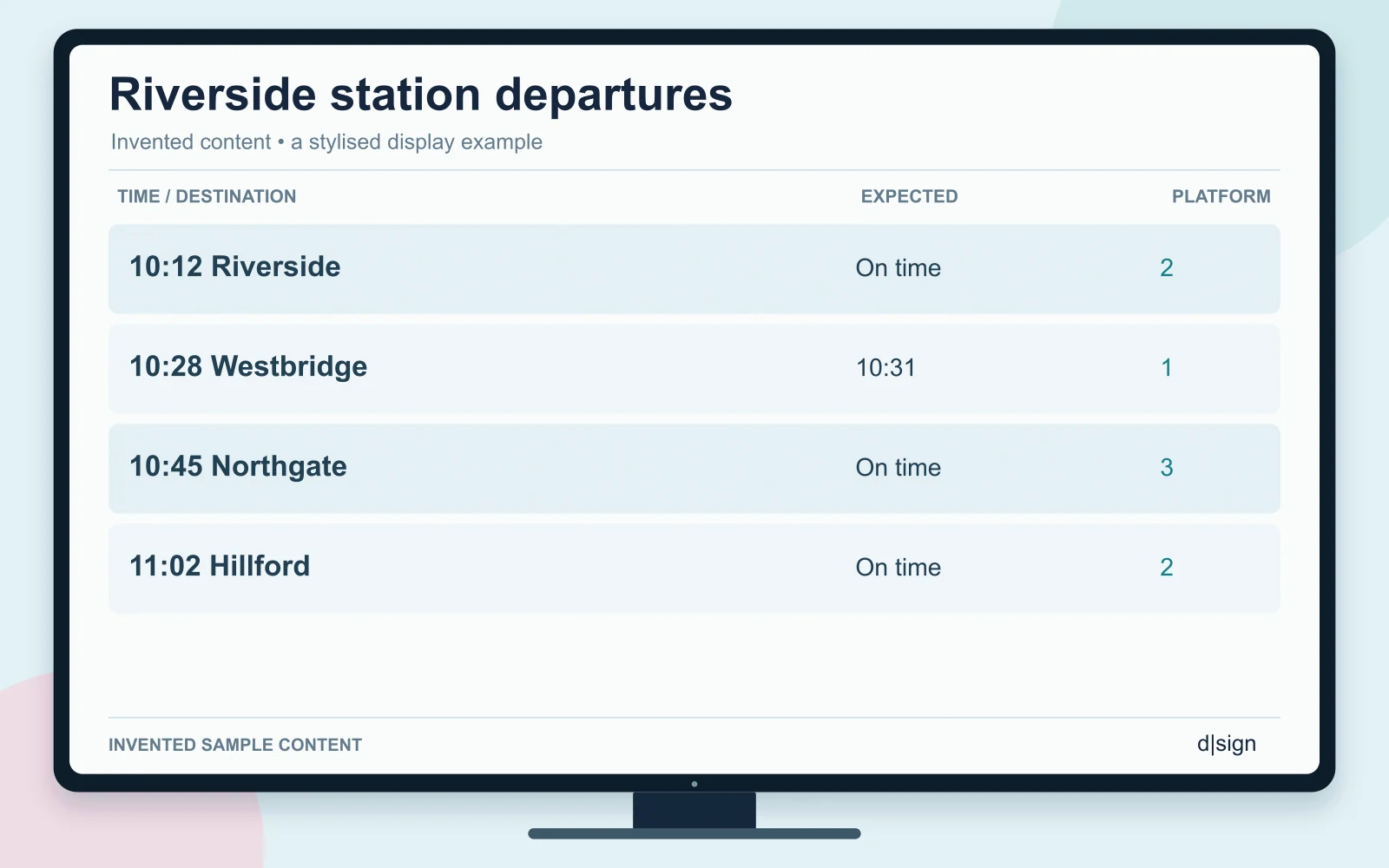
WHY IT IS USEFUL
Put a useful travel check near reception, an exit or another natural stopping point.
Use this capability as part of a display that has a clear job: inform a visitor, keep a team connected or make useful information easier to find. The right configuration depends on the audience and the information you maintain.
What you can do
- Select a supported station and relevant live service information.
- Show available departure or arrival details, destinations and platform information.
- Choose the number of services and how far ahead to look.
- Use a larger zone or full-screen view where the information needs room to breathe.
EXAMPLE USES
A few useful ways to put it to work.
These are example configurations, ready to adapt to your own setting.
Make the information visible
Include nearby station information in a workplace travel screen.
Keep it relevant to the place
Help hotel and conference guests plan their departure.
Combine it with a wider view
Combine rail information with local directions and other transport content.
WORKS AS PART OF A CONNECTED APPROACH
Explore related capabilities.
Combine the tools that make sense for the communication you want to achieve.
London Tube status
Give London travellers a quick overview of Underground service conditions. Show recognisable line names and colours alongside the latest status information supplied by the feed.
Posters
Combine pictures and text into a clear visual notice. Poster gives a message more structure when a simple line of text is not enough and a separate design workflow would slow the update down.
Gallery & media playlists
Turn your existing images and videos into a changing programme of useful content. Build playlists for a whole screen or a selected area, with control over what appears and how long it stays.
SAME INFORMATION, DIFFERENT PRESENTATIONS
Choose how the information appears.
The examples below use invented information to show different ways this content can appear. Give it the whole screen, combine it with other information in a screen area, or use the alternative presentation shown. Available settings depend on the app and the chosen layout.
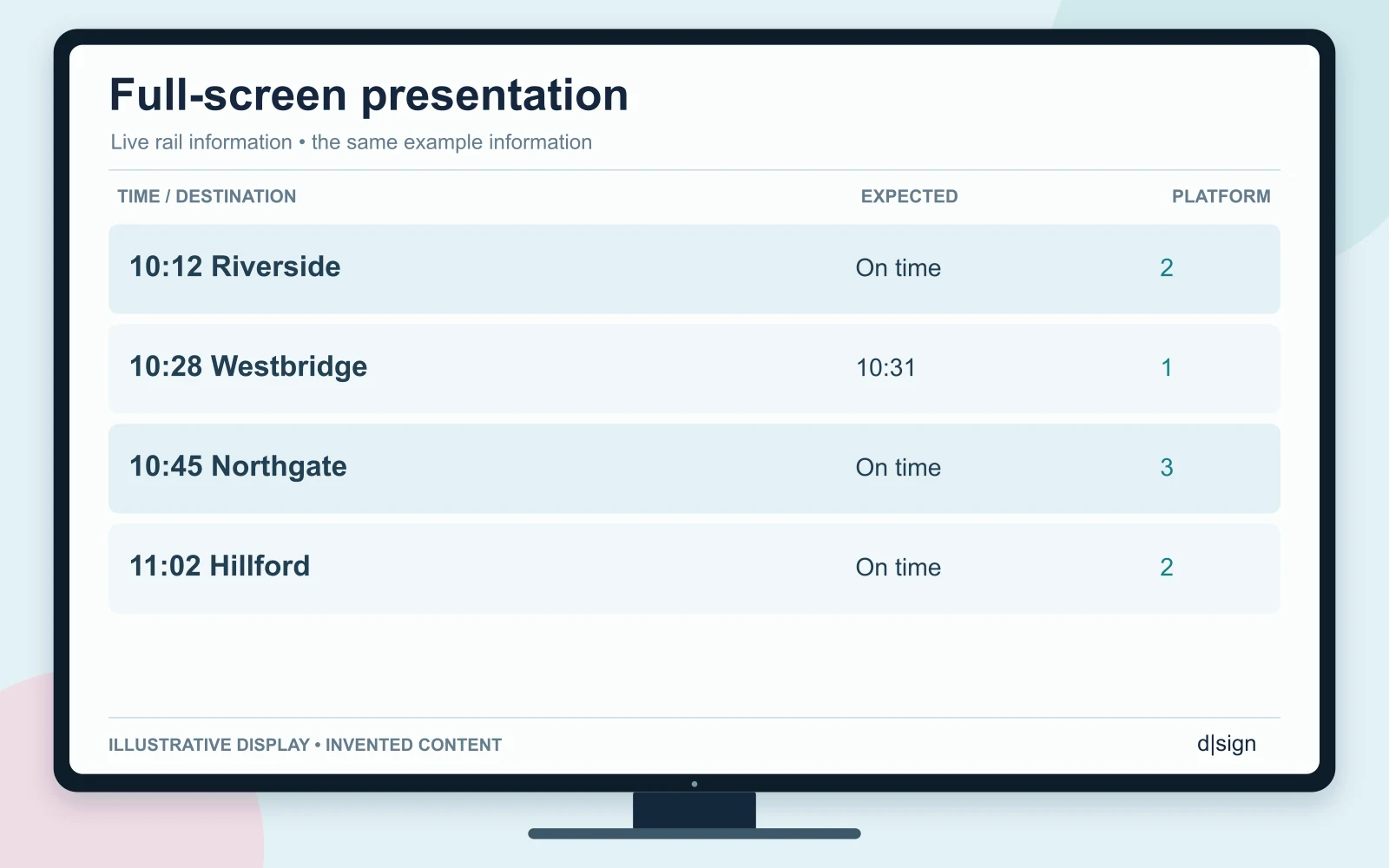
Full-screen presentation
Give this content the whole screen when it deserves the focus.
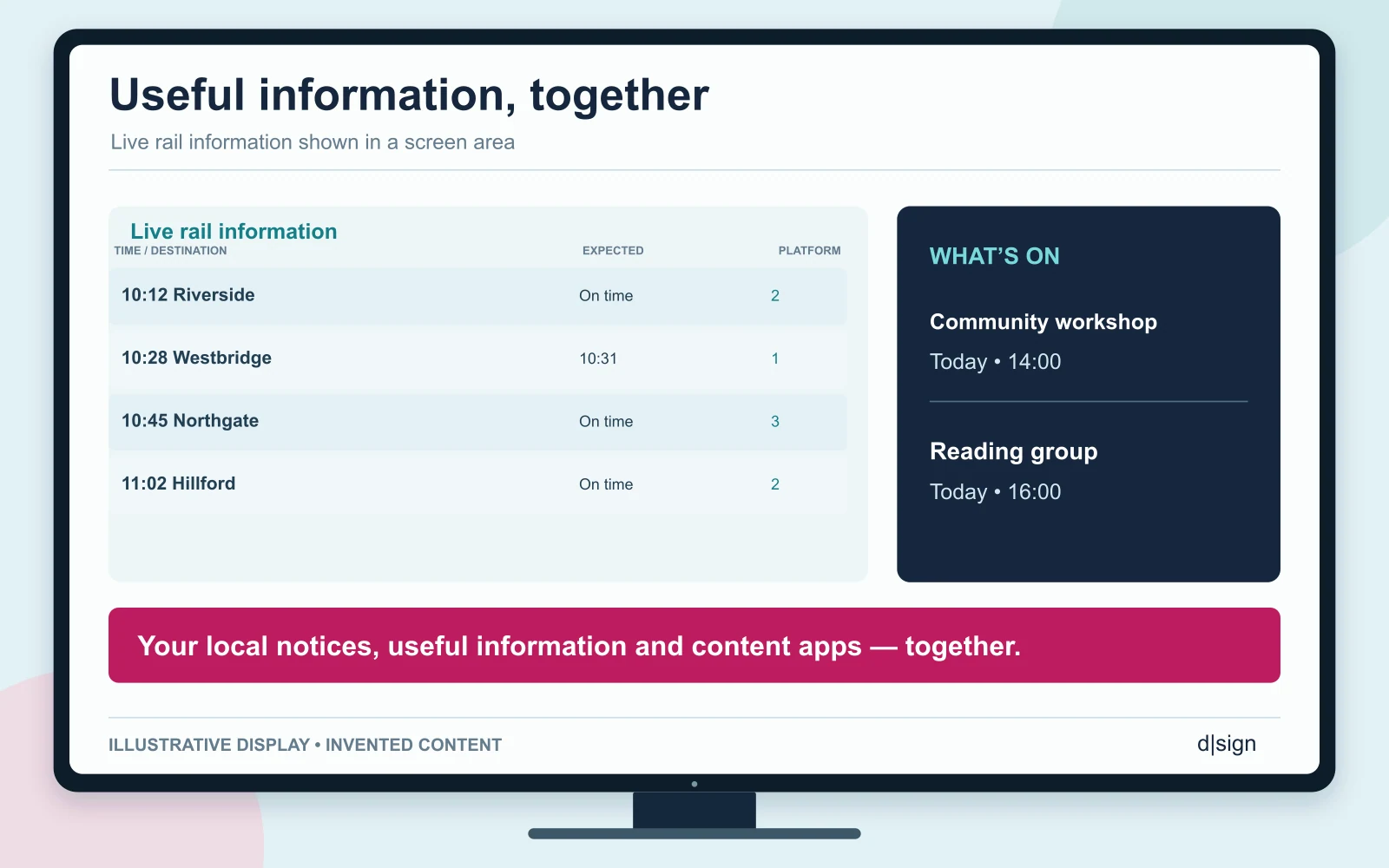
Part of a wider display
The same information occupies one area, alongside complementary content.
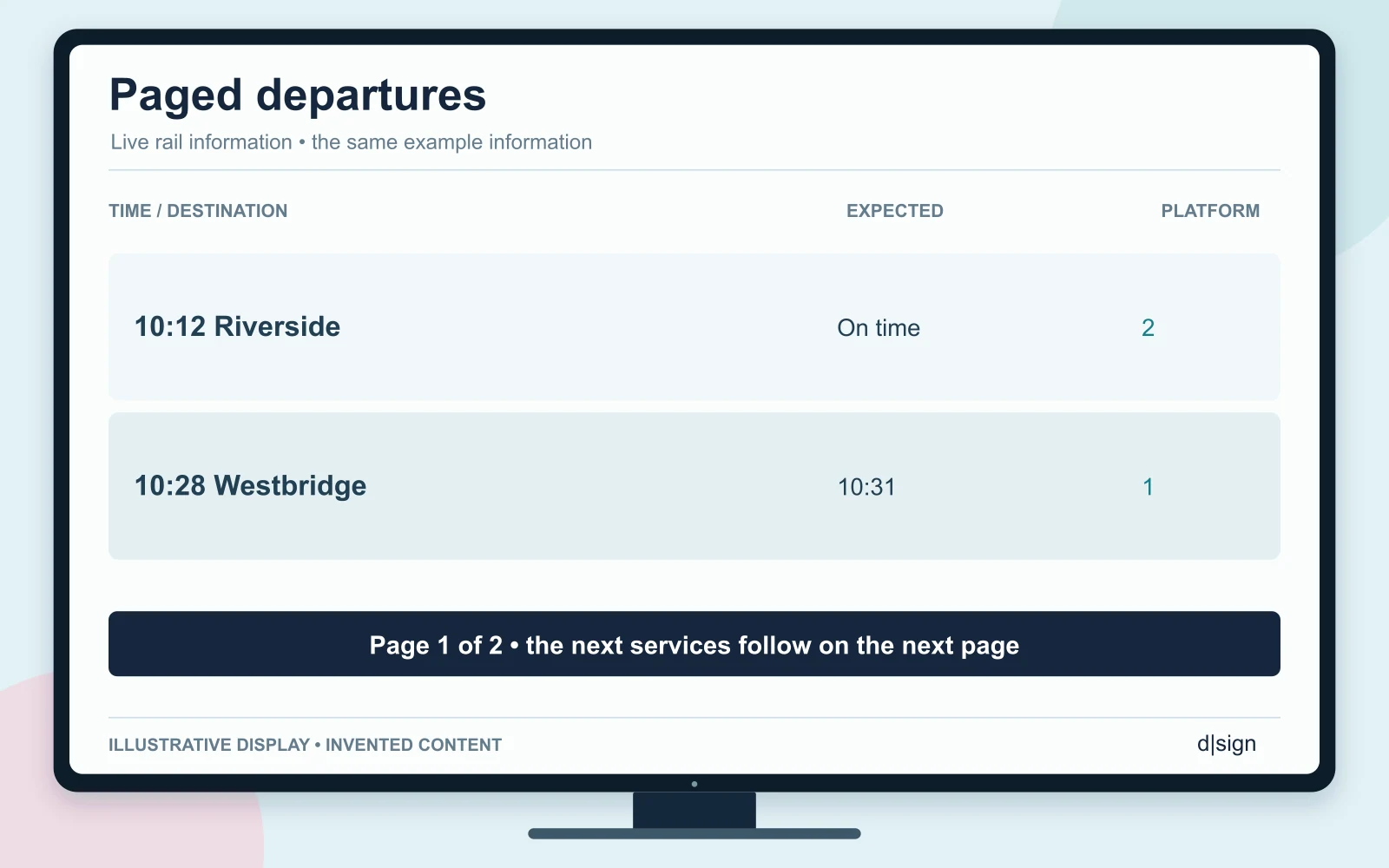
Paged departures
Give fewer services more space and continue on the next page.
Let’s put live rail information to work.
Start with your audience, your spaces and the information you want people to see. We’ll help shape a practical d|sign setup around them.