CONTENT APPS & LIVE FEEDS
Gallery & media playlists.
Turn your existing images and videos into a changing programme of useful content. Build playlists for a whole screen or a selected area, with control over what appears and how long it stays.
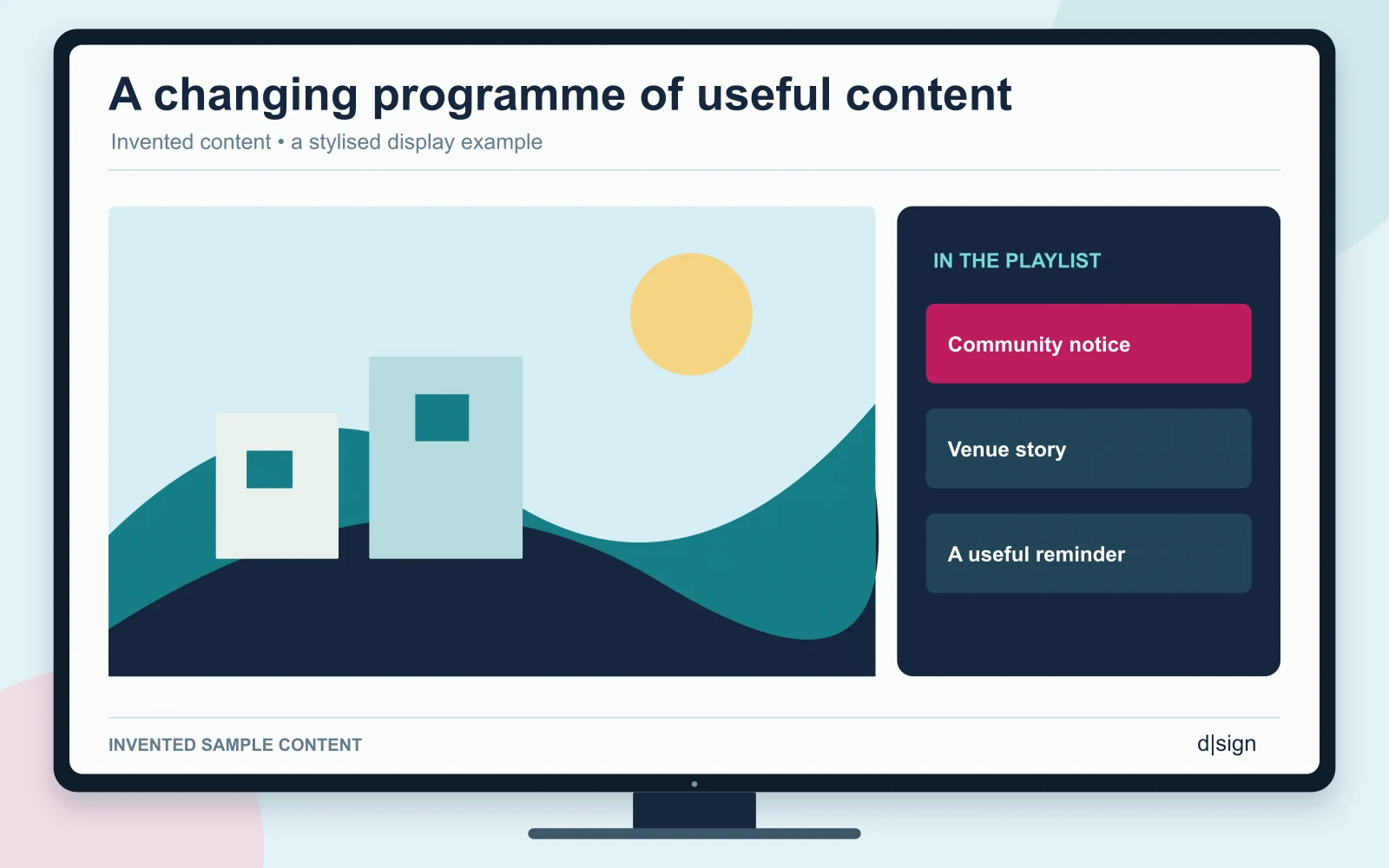
WHY IT IS USEFUL
A practical way to keep notices, campaigns and visual content in circulation without rebuilding a screen each time.
Use this capability as part of a display that has a clear job: inform a visitor, keep a team connected or make useful information easier to find. The right configuration depends on the audience and the information you maintain.
What you can do
- Combine images and video in a playlist, using media from your library.
- Set the order, duration, scaling and presentation of individual items.
- Schedule items for the dates and times when they are relevant.
- Use a playlist full screen or alongside messages and live information in a zone.
EXAMPLE USES
A few useful ways to put it to work.
These are example configurations, ready to adapt to your own setting.
Make the information visible
Rotate staff campaigns, event notices and recognition in a workplace.
Keep it relevant to the place
Publish a changing mix of community activities in a library or public venue.
Combine it with a wider view
Bring promotions, venue photography and useful visitor information together.
WORKS AS PART OF A CONNECTED APPROACH
Explore related capabilities.
Combine the tools that make sense for the communication you want to achieve.
Messages & text
Get a clear message onto the screen without creating a separate graphic. Type an announcement, build a list of updates and choose the colours and display area that fit your communication.
Web page cycler
Bring useful web-based information into your signage. Choose one or more pages, set their refresh and rotation intervals, and display them in a zone or across the screen.
Countdowns
Make an approaching date or event visible. Set a target time, choose the units to display and style the countdown to fit the screen and occasion.
SAME INFORMATION, DIFFERENT PRESENTATIONS
Choose how the information appears.
The examples below use invented information to show different ways this content can appear. Give it the whole screen, combine it with other information in a screen area, or use the alternative presentation shown. Available settings depend on the app and the chosen layout.
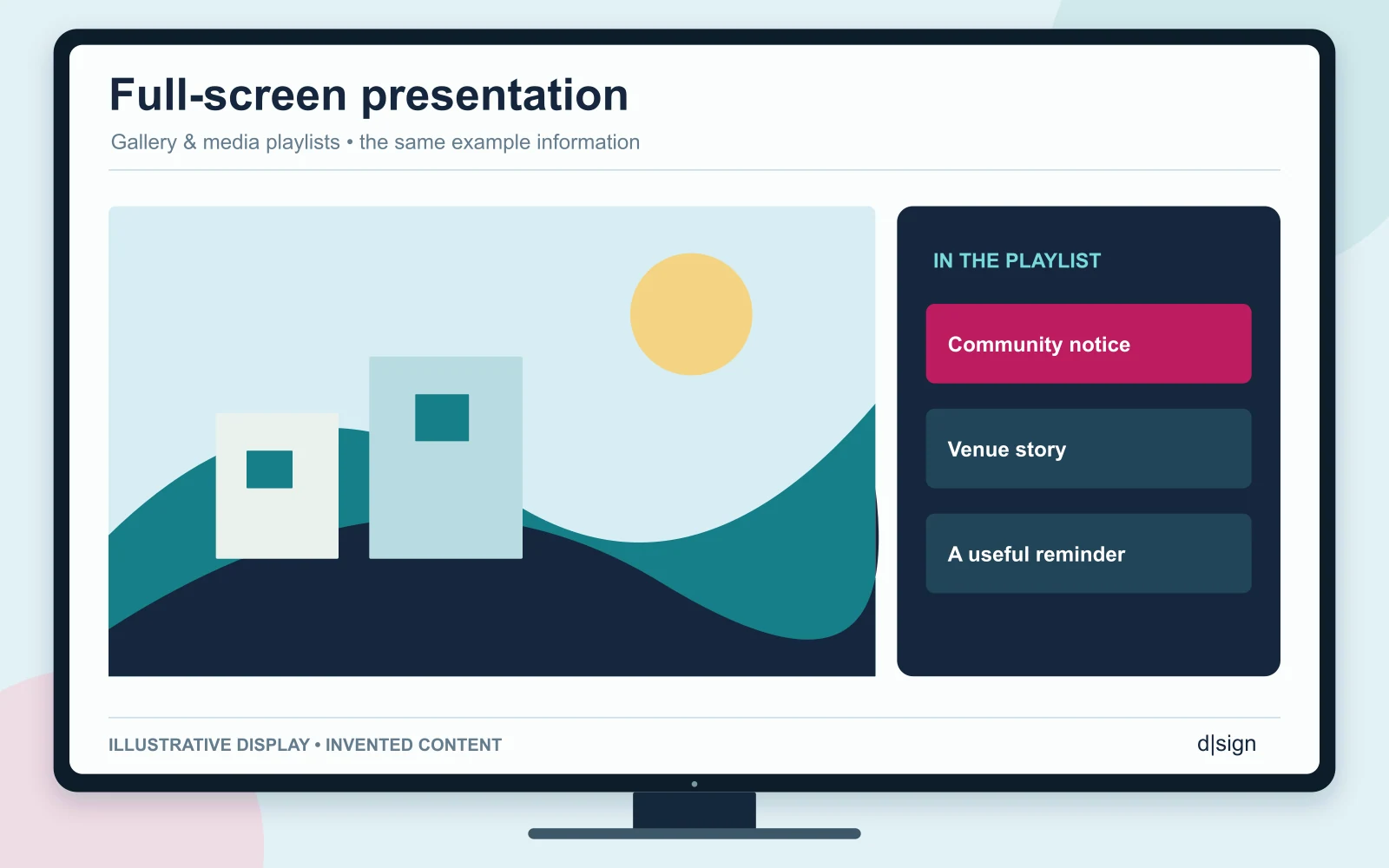
Full-screen presentation
Give this content the whole screen when it deserves the focus.
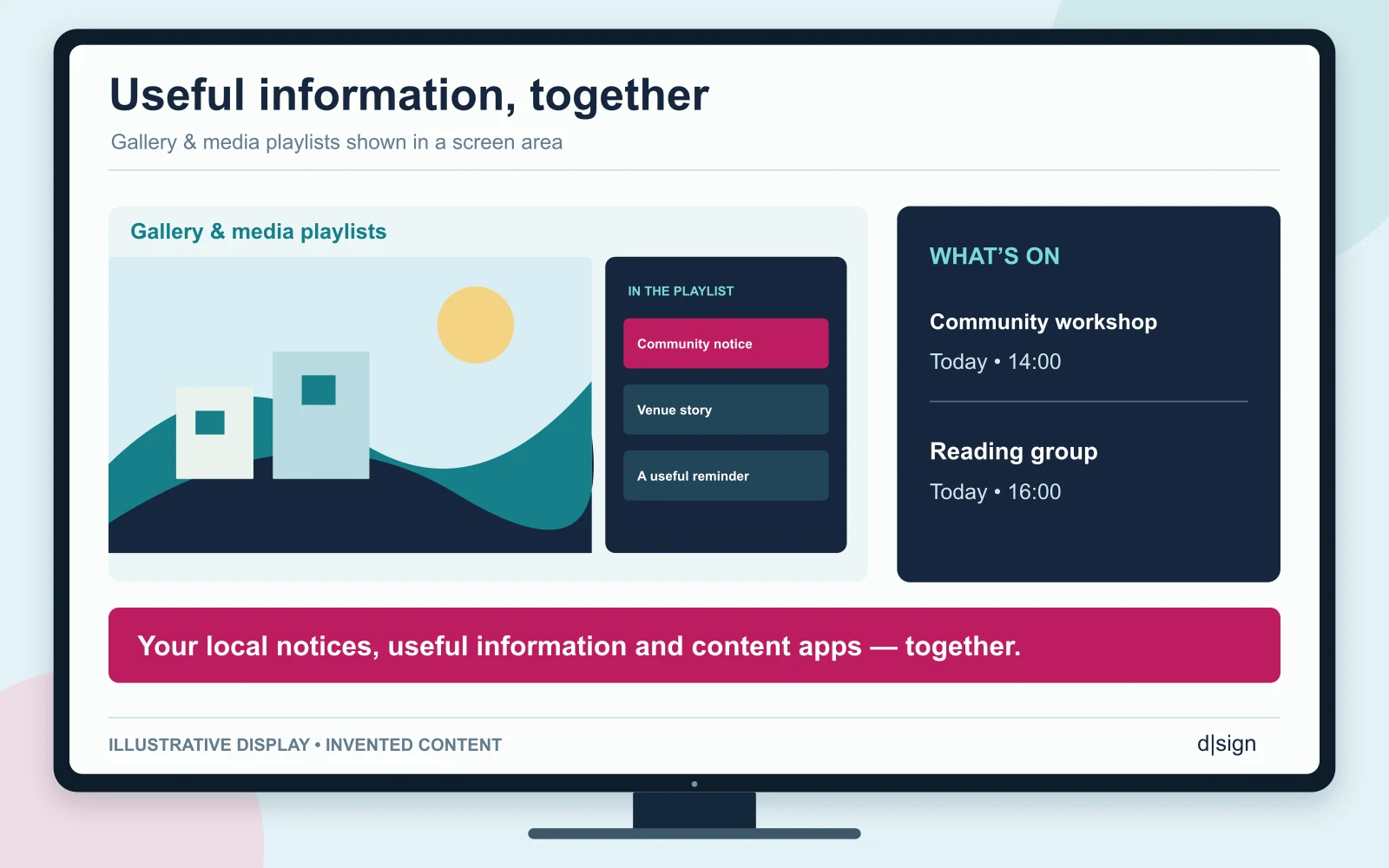
Part of a wider display
The same information occupies one area, alongside complementary content.
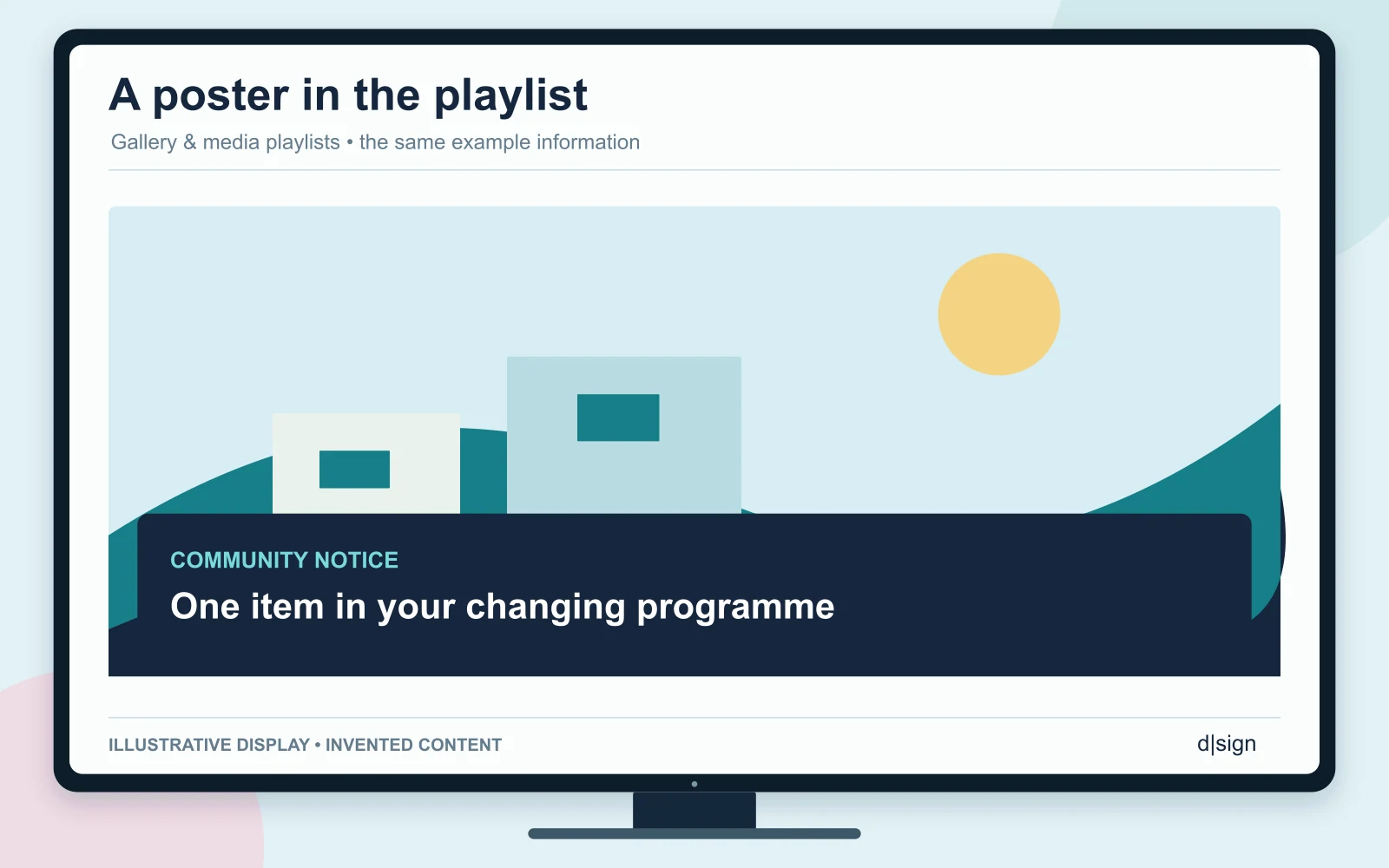
A poster in the playlist
Use an individual poster as one item within the same changing programme.
Let’s put gallery & media playlists to work.
Start with your audience, your spaces and the information you want people to see. We’ll help shape a practical d|sign setup around them.