CONTENT APPS & LIVE FEEDS
Countdowns.
Make an approaching date or event visible. Set a target time, choose the units to display and style the countdown to fit the screen and occasion.
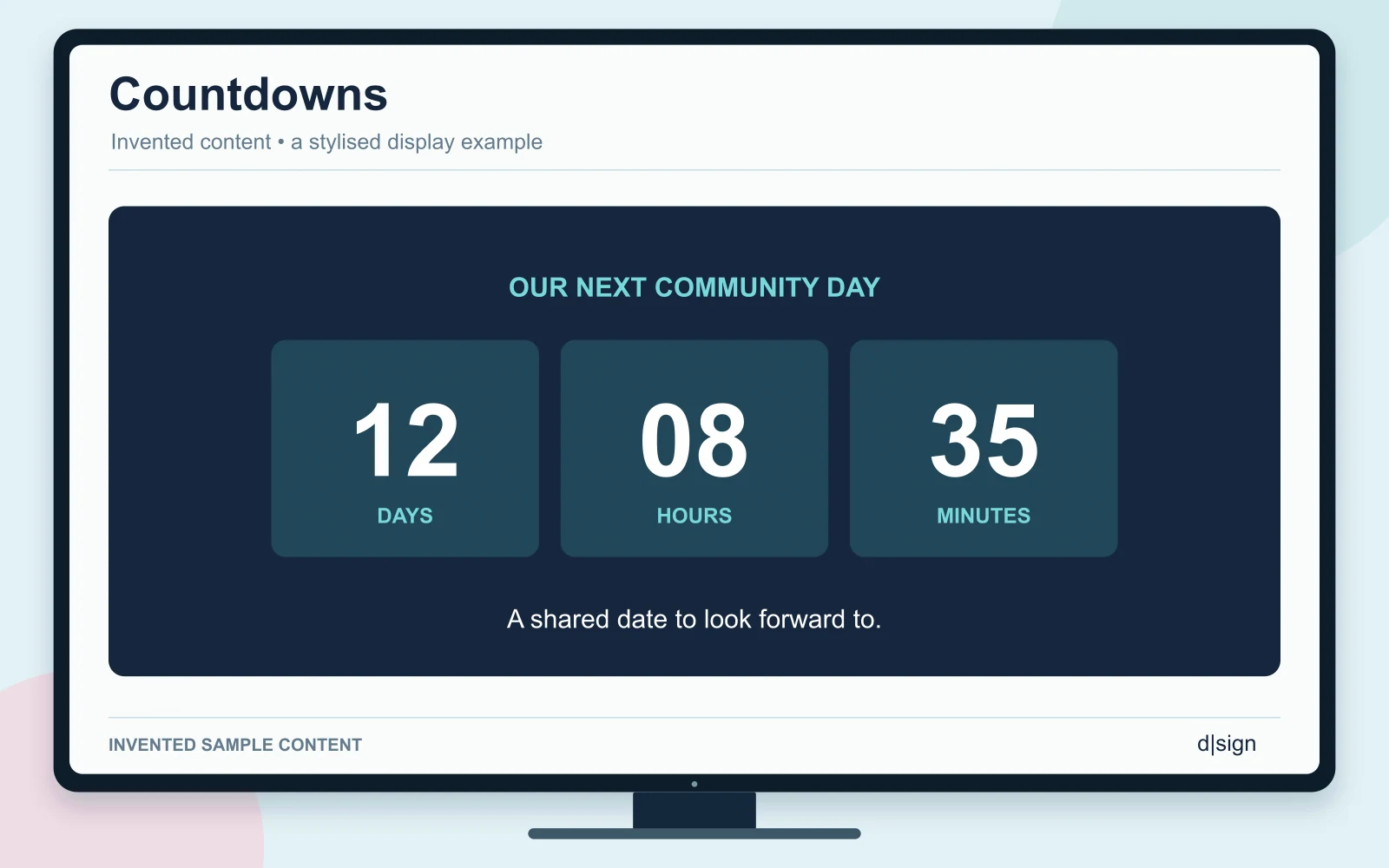
WHY IT IS USEFUL
Keep a shared milestone in view rather than relying on repeated reminders in separate channels.
Use this capability as part of a display that has a clear job: inform a visitor, keep a team connected or make useful information easier to find. The right configuration depends on the audience and the information you maintain.
What you can do
- Set the event date and time, title and description.
- Choose the relevant units, from a broad day count to a more detailed countdown.
- Adapt colours and presentation to the surrounding theme.
- Use a recurring countdown where the event repeats, and place it full screen or in a zone.
EXAMPLE USES
A few useful ways to put it to work.
These are example configurations, ready to adapt to your own setting.
Make the information visible
Count down to an open day, launch or community event.
Keep it relevant to the place
Build anticipation for a college production or celebration.
Combine it with a wider view
Keep a campaign deadline visible in a staff or public space.
WORKS AS PART OF A CONNECTED APPROACH
Explore related capabilities.
Combine the tools that make sense for the communication you want to achieve.
Counters, KPIs & ratings
Give important figures a visible place in the working day. Present manual values, timed counters, ratings or values from a supported data source in a form that people can understand at a glance.
Tenants & occupancy directories
Help visitors understand who is based in your building and where to go. Maintain tenant information and present it as a clear directory, a set of cards or part of a wider reception display.
Rosters, rotas & teams
Put faces, roles and responsibilities in view. Create people profiles and organise them into team lists, duty rosters or other groups that make sense for your organisation.
SAME INFORMATION, DIFFERENT PRESENTATIONS
Choose how the information appears.
The examples below use invented information to show different ways this content can appear. Give it the whole screen, combine it with other information in a screen area, or use the alternative presentation shown. Available settings depend on the app and the chosen layout.
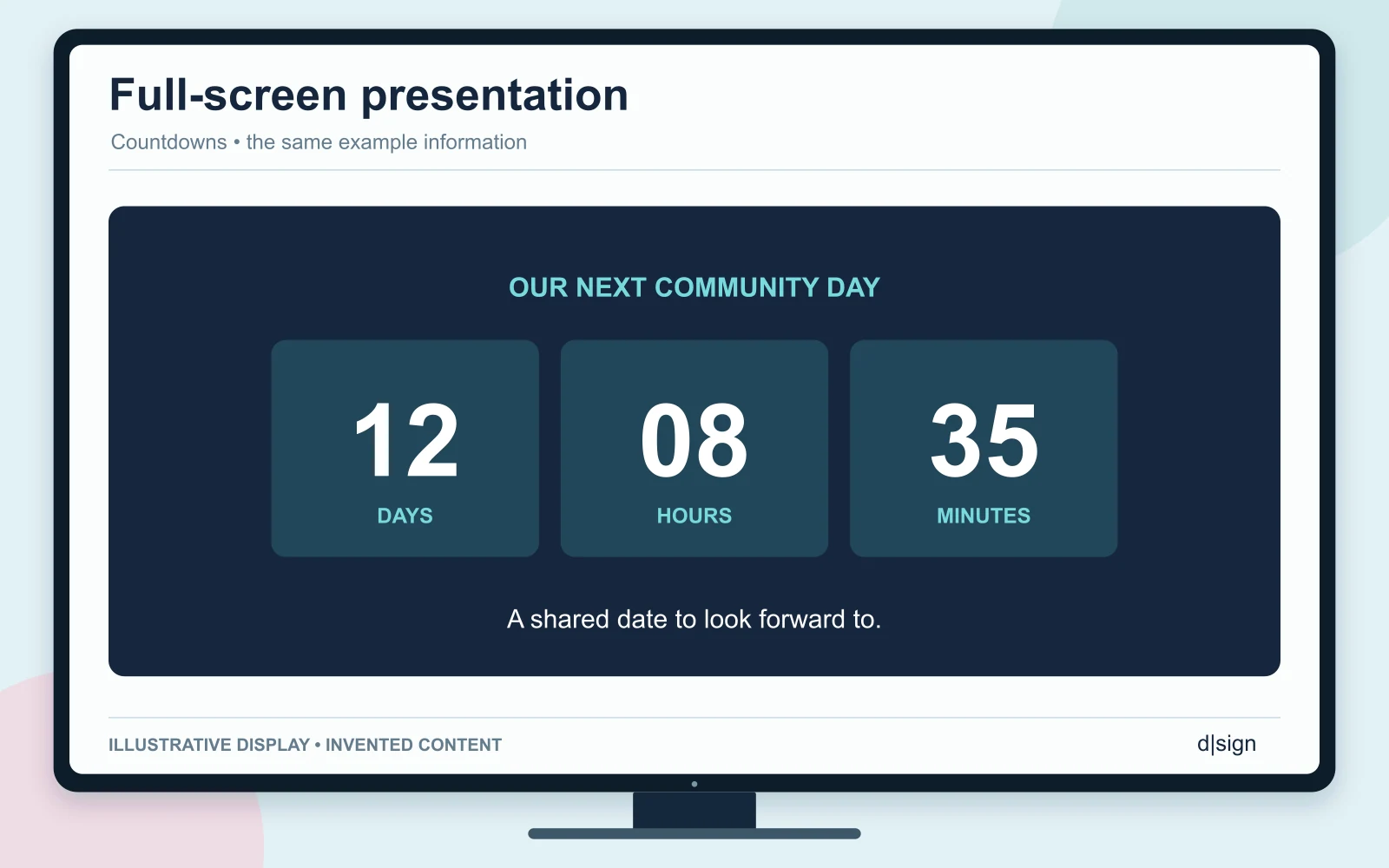
Full-screen presentation
Give this content the whole screen when it deserves the focus.
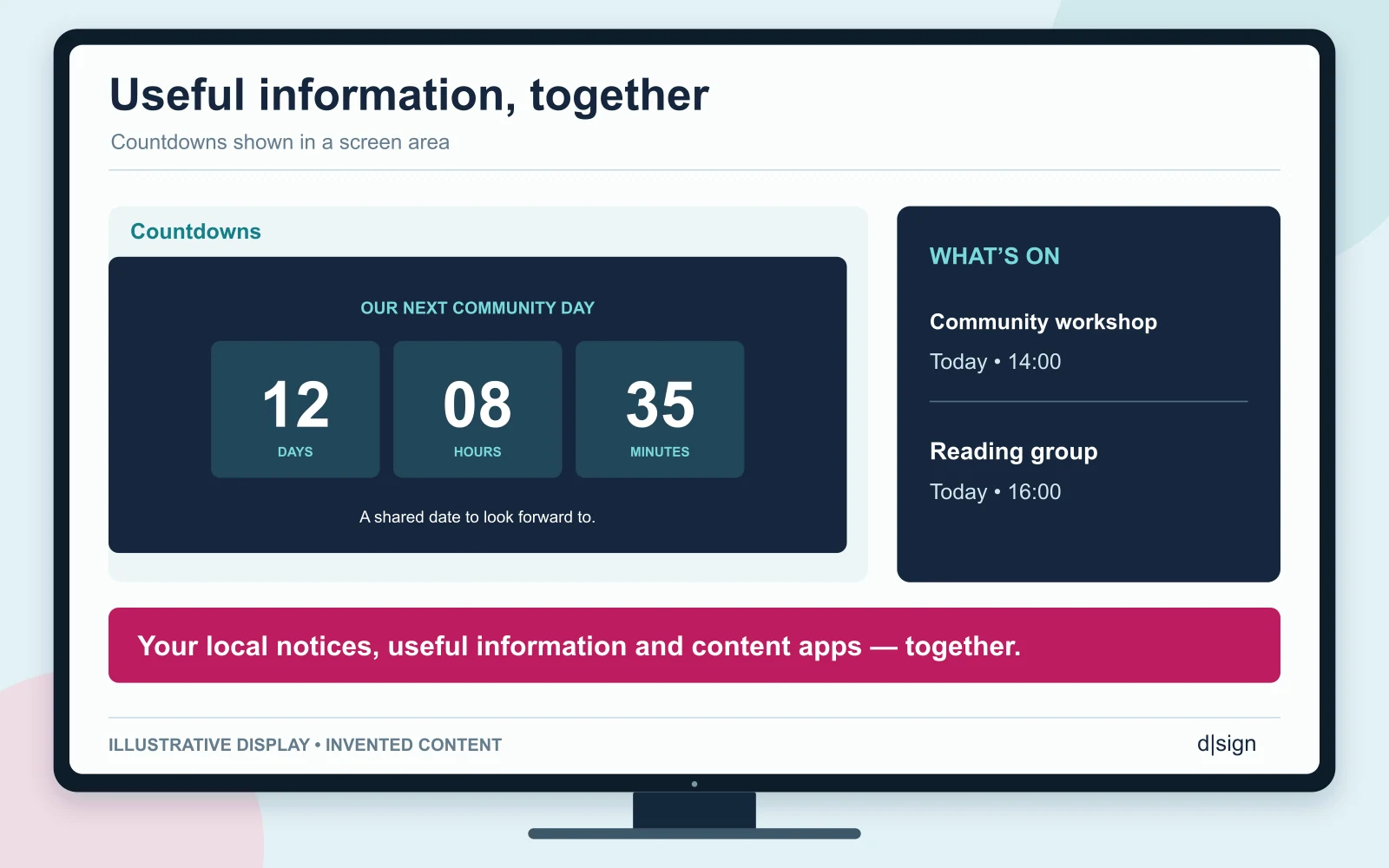
Part of a wider display
The same information occupies one area, alongside complementary content.
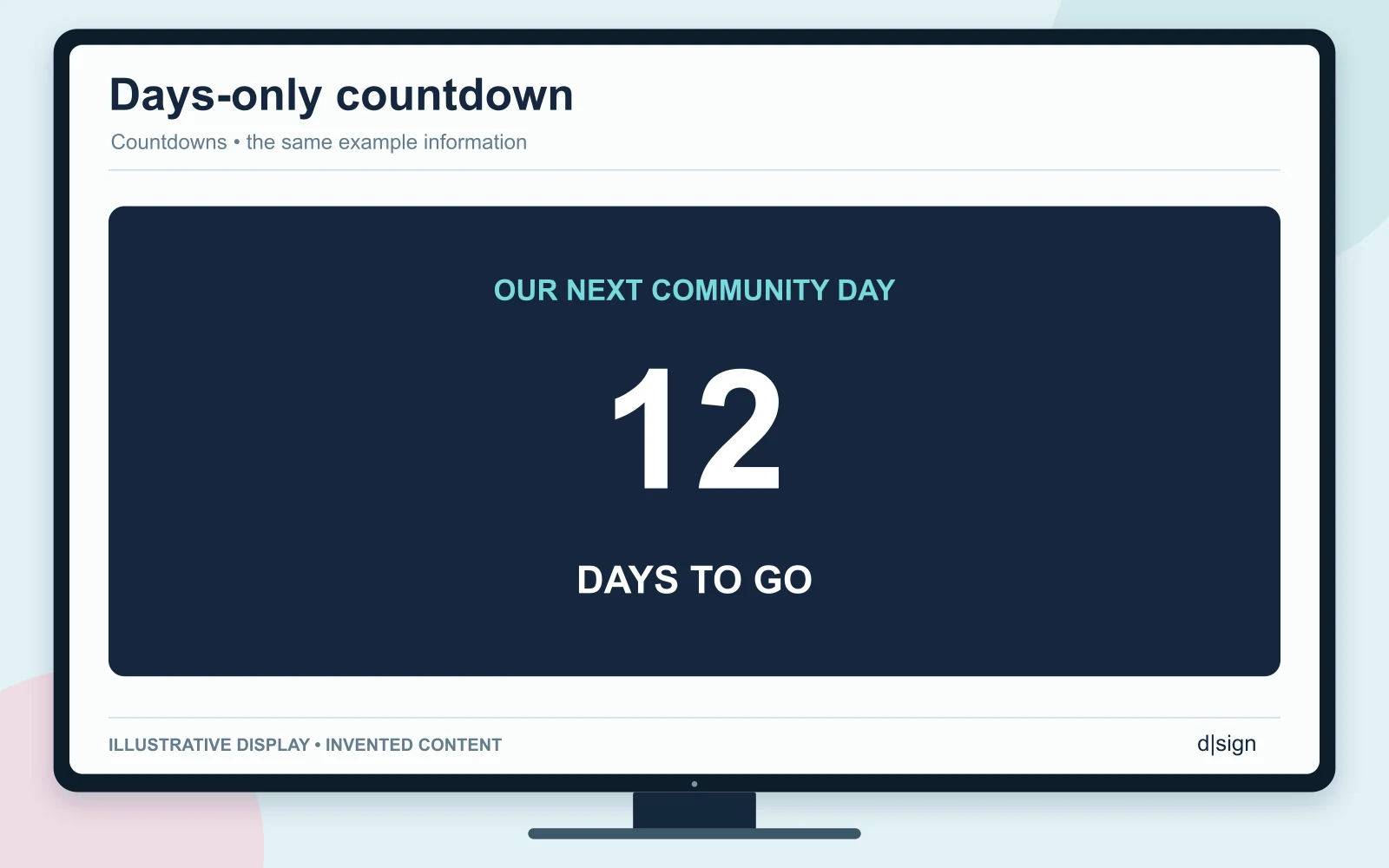
Days-only countdown
Choose the units that suit the distance to the event.
Let’s put countdowns to work.
Start with your audience, your spaces and the information you want people to see. We’ll help shape a practical d|sign setup around them.