INTEGRATIONS & CONNECTED INFORMATION
Microsoft 365 room calendars.
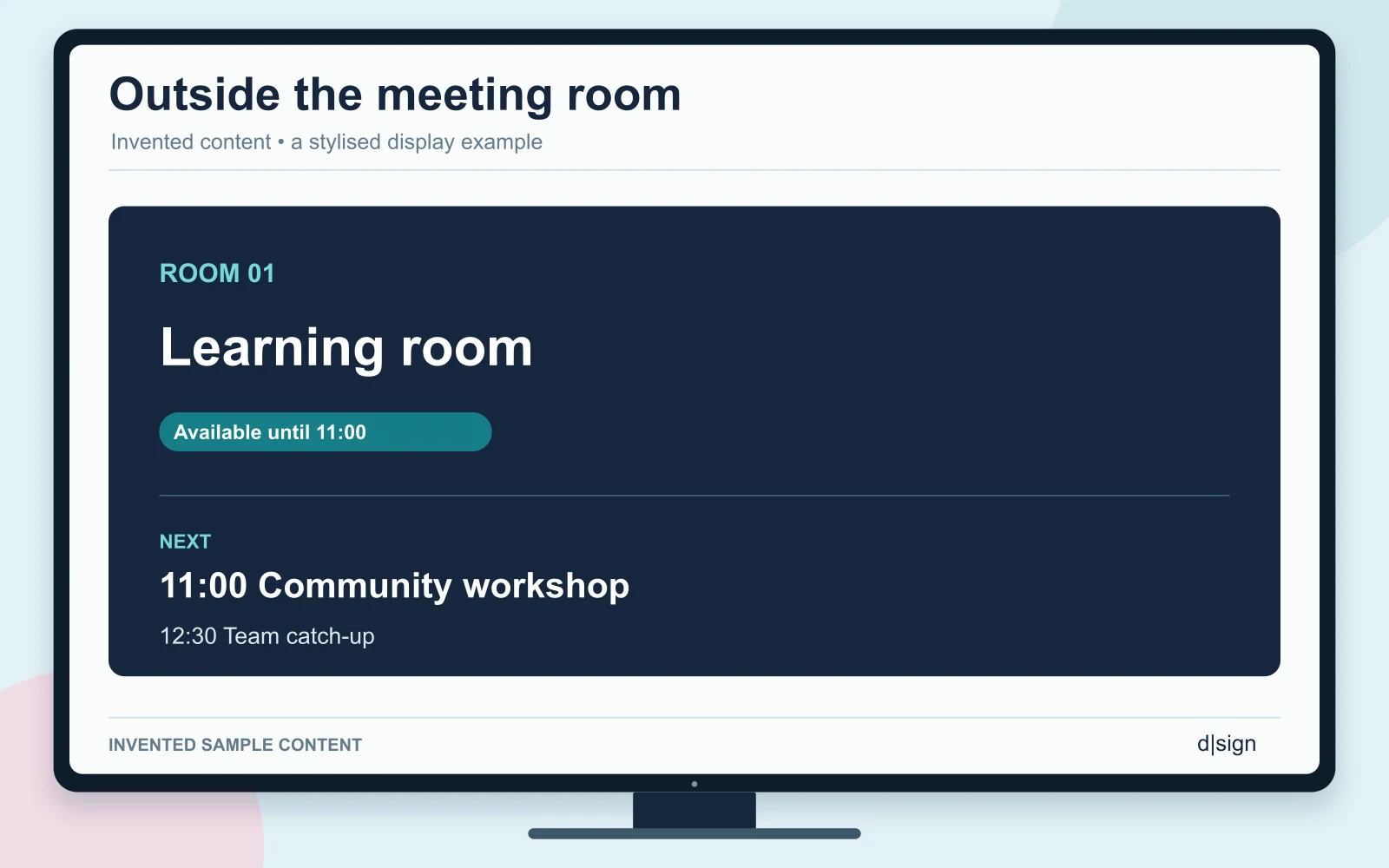
Connect room and event information to the calendar workflow your organisation already uses. Bring supported Microsoft 365 room mailbox bookings into d|sign event and room displays.
WHY IT IS USEFUL
Reduce the need to maintain the same meeting information in a calendar and a separate display schedule.
Use this capability as part of a display that has a clear job: inform a visitor, keep a team connected or make useful information easier to find. The right configuration depends on the audience and the information you maintain.
What you can do
- Connect the relevant Microsoft 365 room or events mailbox.
- Synchronise supported booking information for event and room displays.
- Keep the connection associated with the rooms it serves.
- Plan consent, calendar ownership and display requirements with your Microsoft 365 administrator.
EXAMPLE USES
A few useful ways to put it to work.
These are example configurations, ready to adapt to your own setting.
Make the information visible
Show a meeting room’s current and upcoming bookings.
Keep it relevant to the place
Bring a group of rooms into a reception event overview.
Combine it with a wider view
Use calendar information as part of a conference or workplace display.
WORKS AS PART OF A CONNECTED APPROACH
Explore related capabilities.
Combine the tools that make sense for the communication you want to achieve.
Microsoft Power BI
Bring relevant reports and dashboards into shared view. Display supported Power BI content on the screens used by the people who need the information.
Microsoft Viva Engage
Bring selected workplace conversations beyond individual devices. Use supported Viva Engage content as part of an organisation’s shared screen communication.
Microsoft OneDrive
Bring approved images and videos from OneDrive into your signage media workflow. Access the files you need, then organise and reuse them in d|sign content.
SAME INFORMATION, DIFFERENT PRESENTATIONS
Choose how the information appears.
The examples below use invented information to show different ways this content can appear. Give it the whole screen, combine it with other information in a screen area, or use the alternative presentation shown. Available settings depend on the app and the chosen layout.
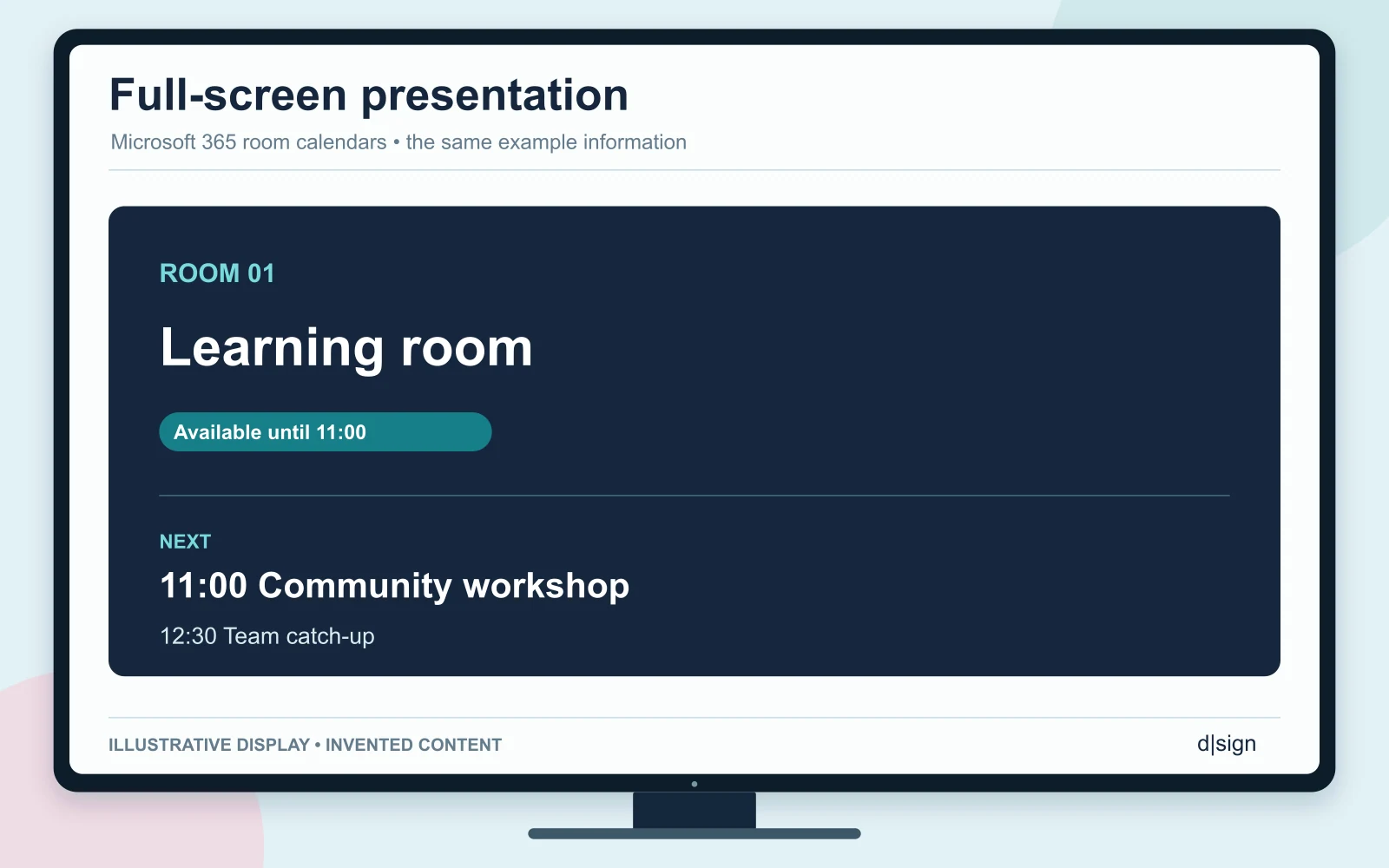
Full-screen presentation
Give this content the whole screen when it deserves the focus.
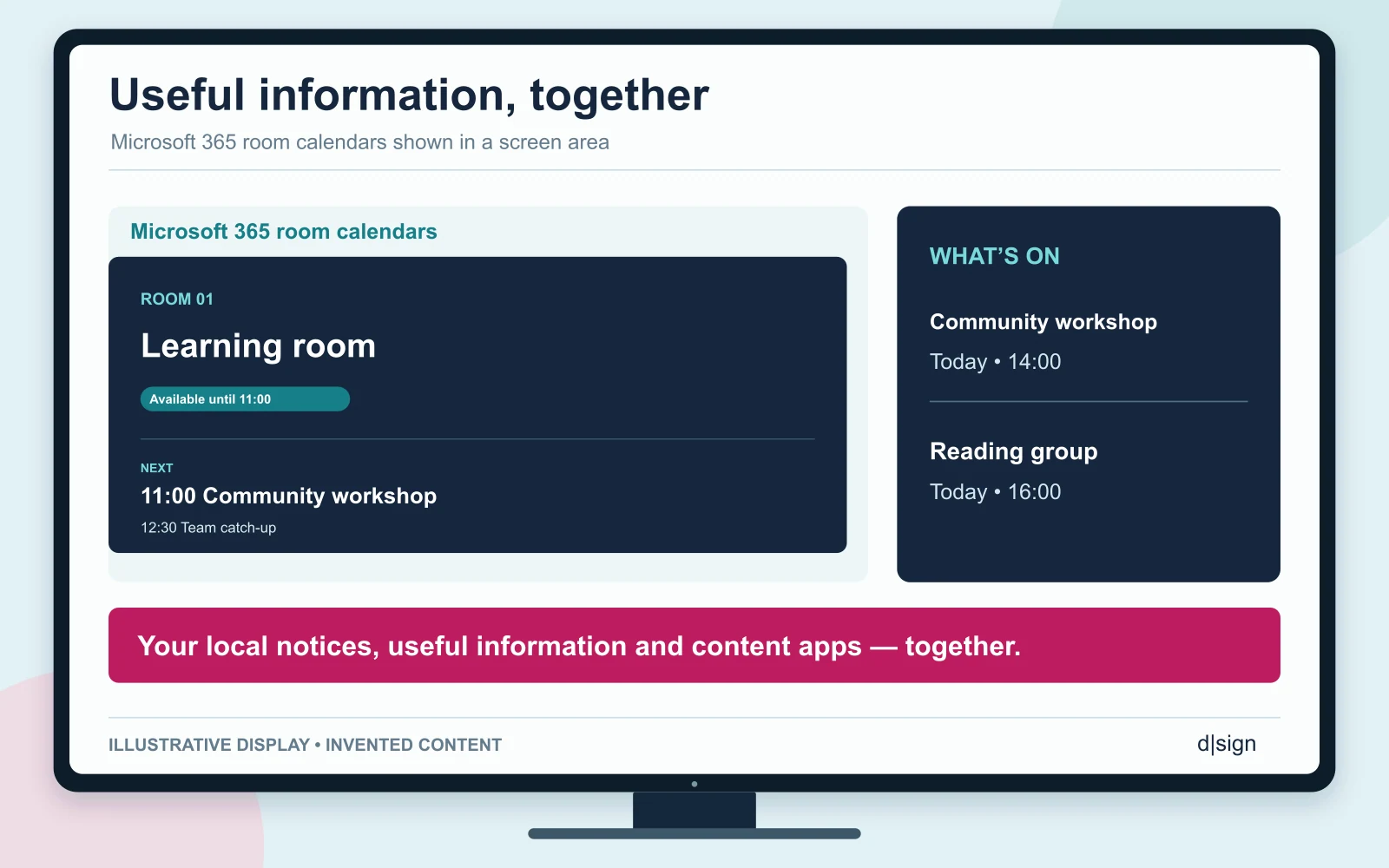
Part of a wider display
The same information occupies one area, alongside complementary content.
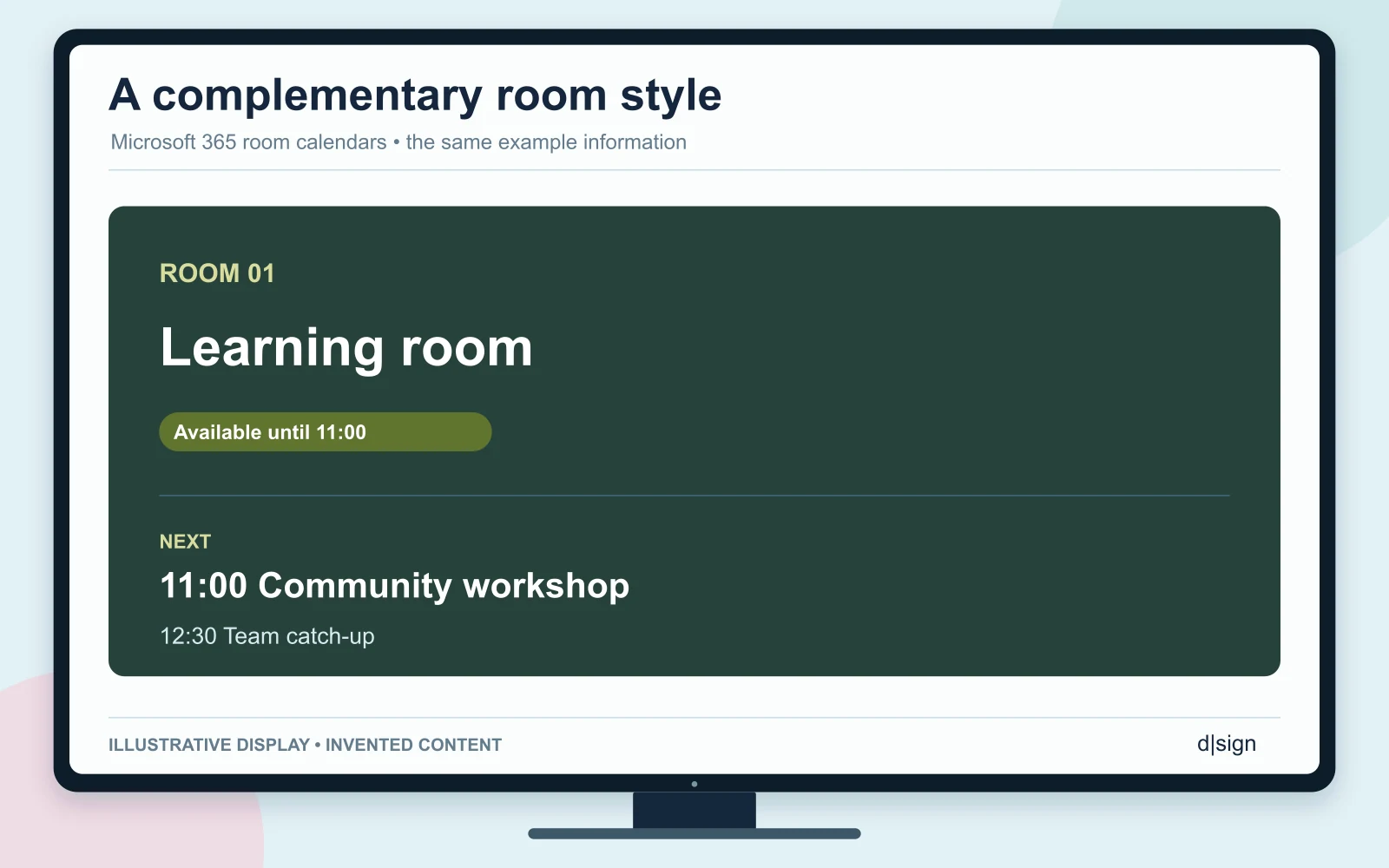
A complementary room style
Keep the same room information while adapting the colours.
Let’s put microsoft 365 room calendars to work.
Start with your audience, your spaces and the information you want people to see. We’ll help shape a practical d|sign setup around them.